# AnimatedScoreboard
## [Download here](https://www.spigotmc.org/resources/animatedscoreboard.20848/)
{% hint style="warning" %}
Please refer to the plugin page tutorials before asking for help, I'm not the developer of this plugin and this info might become outdated at some point.
{% endhint %}
## Font images in the scoreboard
You can use [font\_images ](/adding-content/font-images/font-images.md)(emojis and symbols) in the scoreboard if you install **PlaceholderAPI**.
### Example
`%img_smile%` will show like that:

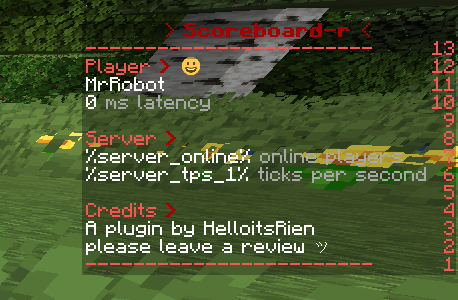
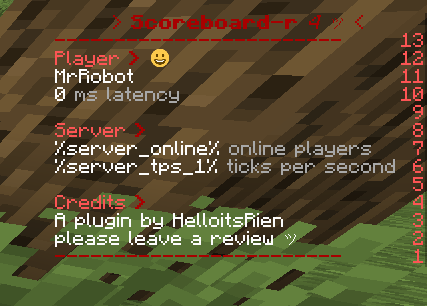
## Hide the scoreboard background
With ItemsAdder you can hide the scoreboard background, just use this trick.
(works with every scoreboard plugin which supports PlaceholderAPI)
{% tabs %}
{% tab title="Before" %}
{% endtab %}
{% tab title="After" %}
\\
{% endtab %}
{% endtabs %}
### How to hide the background
You just have to add `%img_offset_-500%` in front of **each line** of your scoreboard configuration, even in empty lines!
{% hint style="danger" %}
**Warning!**
Not compatible with special attributes of **AnimatedScoreboard** like these and similar!
`❤`
`|`
`&lAnimated Scoreboard`
Please do not ask me for support, I cannot fix this, I'm not the author of **AnimatedScoreboard**.
If you want to use `` you have to put the `%img_offset_-500%` after the first `>`.\
Example:
`%img_offset_-500%&lAnimated Scoreboard`
{% endhint %}
<--- Click here to get the example YML configuration file
{% code title="defaultscoreboard.yml" %}
```yaml
display:
title:
text:
- "%img_offset_-500%&lA"
- "%img_offset_-500%&lAn"
- "%img_offset_-500%&lAni"
- "%img_offset_-500%&lAnim"
- "%img_offset_-500%&lAnima"
- "%img_offset_-500%&lAnimat"
- "%img_offset_-500%&lAnimate"
- "%img_offset_-500%&lAnimated"
- "%img_offset_-500%&lAnimated "
- "%img_offset_-500%&lAnimated S"
- "%img_offset_-500%&lAnimated Sc"
- "%img_offset_-500%&lAnimated Sco"
- "%img_offset_-500%&lAnimated Scor"
- "%img_offset_-500%&lAnimated Score"
- "%img_offset_-500%&lAnimated Scoreb"
- "%img_offset_-500%&lAnimated Scorebo"
- "%img_offset_-500%&lAnimated Scoreboa"
- "%img_offset_-500%&lAnimated Scoreboar"
- "%img_offset_-500%&lAnimated Scoreboard"
- "%img_offset_-500%&c&lAnimated Scoreboard"
- "%img_offset_-500%&lAnimated Scoreboard"
- "%img_offset_-500%&c&lAnimated Scoreboard"
- "%img_offset_-500%&lAnimated Scoreboard"
- "%img_offset_-500%&c&lAnimated Scoreboard"
- "%img_offset_-500%&lAnimated Scoreboard"
random: false
interval: 2
line-1:
text:
- "%img_offset_-500%"
random: false
interval: 200
score: 99
line-2:
text:
- "%img_offset_-500%&a&lWelcome %player_name%"
- "%img_offset_-500%&b&lWelcome %player_name%"
- "%img_offset_-500%&c&lWelcome %player_name%"
random: false
interval: 5
score: 98
line-3:
text:
- "%img_offset_-500%"
random: false
interval: 20
score: 97
line-4:
text:
- "%img_offset_-500%&aYour gamemode:"
- "%img_offset_-500%&aYour location:"
- "%img_offset_-500%&aYour world:"
random: false
interval: 60
score: 96
line-5:
text:
- "%img_offset_-500% &b%player_gamemode%"
random: false
interval: 60
score: 95
line-6:
text:
- "%img_offset_-500% &bX:%player_x% Y:%player_y% Z:%player_z%"
random: false
interval: 1
score: 95
line-7:
text:
- "%img_offset_-500% &b%player_world%"
random: false
interval: 60
score: 95
line-8:
text:
- "%img_offset_-500%"
random: false
interval: 200
score: 95
line-9:
text:
- "%img_offset_-500%&1Random Rotation"
- "%img_offset_-500%&2Random Rotation"
- "%img_offset_-500%&3Random Rotation"
- "%img_offset_-500%&4Random Rotation"
- "%img_offset_-500%&5Random Rotation"
- "%img_offset_-500%&6Random Rotation"
- "%img_offset_-500%&7Random Rotation"
- "%img_offset_-500%&8Random Rotation"
- "%img_offset_-500%&9Random Rotation"
- "%img_offset_-500%&aRandom Rotation"
- "%img_offset_-500%&bRandom Rotation"
- "%img_offset_-500%&cRandom Rotation"
- "%img_offset_-500%&dRandom Rotation"
- "%img_offset_-500%&eRandom Rotation"
- "%img_offset_-500%&kRandom Rotation"
- "%img_offset_-500%&lRandom Rotation"
- "%img_offset_-500%&mRandom Rotation"
- "%img_offset_-500%&nRandom Rotation"
- "%img_offset_-500%&oRandom Rotation"
- "%img_offset_-500%&rRandom Rotation"
random: true
interval: 1
score: 94
line-10:
text:
- "%img_offset_-500%"
random: true
interval: 1
score: 93
```
{% endcode %}
---
# Agent Instructions: Querying This Documentation
If you need additional information that is not directly available in this page, you can query the documentation dynamically by asking a question.
Perform an HTTP GET request on the current page URL with the `ask` query parameter:
```
GET https://itemsadder.devs.beer/compatibility-with-other-plugins/compatible/animatedscoreboard.md?ask=
```
The question should be specific, self-contained, and written in natural language.
The response will contain a direct answer to the question and relevant excerpts and sources from the documentation.
Use this mechanism when the answer is not explicitly present in the current page, you need clarification or additional context, or you want to retrieve related documentation sections.